
Number
Pick a whole number within your chosen range.
Enter a minimum and maximum, then tap Generate. Change the range whenever you need a different set of possible results.
Random · User guide
Spin, flip, roll and explore. Here’s how to get started with Random’s 33 tools.
For app version 6.2Open a generator from the home screen. Search by name or browse a category. Set any options you need, then tap the main button to get a result.
Use Add in Your favorites to choose up to six tools. Drag the handles to reorder them, or use the minus button to remove a favorite.
Open the Packs tab for ready-made ideas. Choose a pack and use its picker to get a suggestion without building your own list.
Look for Settings and Style inside a generator. The options vary by tool. Features marked Premium open the upgrade screen when locked.
Pick a whole number within your chosen range.
Enter a minimum and maximum, then tap Generate. Change the range whenever you need a different set of possible results.
Pick a decimal number within a range.
Set the minimum, maximum and decimal precision, then tap Generate.

Turn a list of choices into a spinning decision wheel.
Open Lists, create a list and add at least two choices. Tap Use this list, then Spin. In Settings, you can enable Disable winners after each spin to turn winners dark grey and exclude them from later spins. Reset makes all slices available again.

Build a wheel with custom slices, colors and tags.
Tap Create new wheel and add at least two slices. You can add several at once or import a saved list. Tap a slice’s pencil to change its text, colors and text size. Style controls the spin duration and wheel appearance; Tags helps you organize your wheels.
Use this wheel saves it and opens the spin screen. Save keeps it in your collection for later. Tap Spin to choose a winner.
In the spin screen’s Settings, enable Disable winners after each spin to turn winning slices dark grey and exclude them from later spins. Tap Reset below the wheel and confirm to enable every slice again. Your saved slices are never deleted.
This setting is remembered across restarts and applies to all your Super Wheels. Each time you reopen a wheel, every slice starts enabled. You can also avoid consecutive winners, show a winner dialog or shuffle slice positions for the current session.
Super Wheel has Wheel and Settings tabs in version 6.2. History and history export are not available in this version.

Pick an item at random from your saved choices.
Create a list, add at least two items and tap Use this list. You can also select several lists together. Return to the picker and tap Pick for a result.

Randomly divide people or entries into teams.
Create a list of participants and tap Use this list. Choose the number of teams, then generate the groups. Add everyone before generating so they are included.

Receive a random item from your list as a notification.
Create a notification, add at least two choices and set its time. Tap Activate and allow notifications when asked. Save keeps an inactive draft; Pause stops an active notification.

Turn list items into face-down cards you can reveal.
Choose or create a list with at least two items. Tap Shuffle, then tap a card to reveal its choice. Shuffle again to start another draw.
Pick items from a list repeatedly using a timer.
Choose a list, set the interval in seconds and tap Start. Next pick in shows the countdown; Repeats every shows the interval between picks.
Pause before using − or + to change the time. Editing the paused countdown also sets the interval for future picks. Resuming without editing keeps the original interval. Use Notification instead if you want scheduled notification alerts.

Flip a coin for a heads-or-tails result.
Choose how many coins to flip, then tap Toss. Use Style to change the appearance where available.

Start a conversation with a choice between two possibilities.
Open Categories, choose the topics you want and confirm your selection. Generate a prompt, choose your answer and discuss it with the group. General and Food & Drinks are free; other categories require Premium.

Get a random yes-or-no answer.
Tap the main button to pick an answer. Use it for quick choices, conversation starters or games.

Roll one or more dice.
Choose the number of dice, then tap Roll. Roll again whenever you need a fresh result.

Pick random playing cards.
Choose how many cards to display, then use the main action button. Repeat for a new draw.
Randomly choose rock, paper or scissors.
Tap the main button to reveal a choice. Use it for a quick round or to make a playful decision.

Play Truth or Dare with a group.
Choose or create a player group, then choose your Truths and Dares lists. Each list needs at least two items. Tap Let’s Play, spin for a player and choose a challenge. In an editor, Use this list selects it and returns to setup. Custom Truths and Dares lists require Premium.

Find yes-or-no questions to get people talking.
Choose your categories, then generate a question. Answer it yourself or take turns with a group. General and Food & Drinks are free; other categories require Premium.
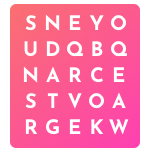
Find six hidden words in a generated puzzle.
Drag from the first letter to the last, or tap both ends. Words can run across, down or diagonally in either direction. New Puzzle starts over. Progress lasts for the current session.

Generate names with different locale options.
Choose a locale and the available name options, then tap Generate. Some locales require Premium.

Generate a password using the options you choose.
Set the length and character options, then tap Generate. Copy the result using the available result controls.

Generate sample information such as names and addresses.
Choose the type of data you need and use the main action button. The results are sample data for ideas, examples or testing.

Pick a random letter.
Choose how many letters you want, then tap Pick. Try it for word games, prompts or challenges.

Shuffle the text you enter.
Enter your text and tap Scramble. Repeat to try another arrangement.
Pick random words for ideas and word games.
Choose how many words you want, then tap Pick. Tap it again for a new selection.

Read a randomly selected quote.
Use the main action button for a quote. Keep going to discover another, and use the share control when you want to pass one along.

Generate ideas for a username.
Choose how many usernames you want, then tap Pick. Try a few variations and copy one you like. Check its availability on the service where you plan to use it.

Pick a random image from your albums.
Create an album and add at least two images from Image Manager. Tap Use this album, then pick an image. You can select several albums together.

Make a spinning wheel from your images.
Create an album, add at least two images and tap Use this album. Spin to choose an image. Your selected albums can contain up to 100 images in total.

Use several generators together on one screen.
Tap Add a generator, choose a tool and set up its card. Run a card on its own or tap Run All. The workspace is temporary and clears when you close it. Some tools and additional cards require Premium.

Discover a random color.
Tap the main action button to generate a color. Use the result controls to copy or share its value where available.

Choose a random time.
Set a start and end time, then tap Pick. Tap it again to choose another time.

Choose a random date.
Set a start and end date, then tap Pick. Change the range to narrow or expand the possible dates.

Pick a random direction.
Tap the main action button to reveal a direction. Use it for games or creative prompts.
Open the generator’s list picker, create a list and add your items. Most list tools need at least two saved items. Tap Use this list in the editor to select it and return to the generator. Add an item with the plus button before using the list.
The pencil edits a list; the trash button deletes it. Where available, Add multiple items accepts one item per line. Some tools can also show saved lists from other generators when that option is enabled in their settings.
Open History where available to see previous results. Use its sorting and filtering options to find a result. Frequency charts show the most common results first, with a scrollable data table in the same order. Locked statistics are covered until Premium is active. Super Wheel does not offer a History tab in version 6.2.
Use the copy or share controls shown by the generator. Available controls depend on the result and tool. Some list tools also offer CSV export in their settings.
Tools labeled Premium in this guide require Premium access. Other tools may offer extra Premium settings, styles or content. The Premium screen shows the current plans and prices. If you already purchased, use Restore Purchases there.
When Premium opens over a list or settings screen, close it to return to what you were doing.
Use Haptic/Vibration in the app’s Settings to control vibration. On supported iPhones, wheels give light taps as slices pass the pointer while spinning. Reduced Motion can change the spin animation and feedback.
Check that your notification is active in Random and that notifications are allowed for Random in your iPhone settings. Focus modes and your device’s notification settings can affect when alerts appear.
Add at least two items using the plus button. Text still in the input field has not been added to the list yet. For albums, add at least two images.
Random results can repeat. A previous result does not necessarily get excluded from the next pick. Check the generator’s settings for options that change how later results are chosen.
With Disable winners after each spin enabled, winning slices stay on the wheel but cannot win again in that round. Tap Reset and confirm to enable them all. When only one eligible slice remains, the next spin asks you to reset. Turning the setting off also makes all slices eligible again. Resetting does not turn the setting off or delete your saved choices.
In Lucky Wheel, it appears next to Share. In Super Wheel, it appears below the wheel. In both, Disable winners after each spin must be enabled and at least one winner must have been disabled.
The Disable winners after each spin setting is remembered, but the disabled slices belong to the current session. Reopening a wheel starts with every slice enabled. Your saved wheel stays unchanged.
Open the wheel editor, then tap the pencil beside a slice. Adjust Text size for that slice and save it. There is no setting to change every slice’s text size at once.
The − and + buttons are disabled while the timer runs. Pause it first. For example, if 6 seconds remain, tapping − sets both the countdown and future repeat interval to 5 seconds. Tap Start to continue.
Some list-based generators offer a setting to show lists from other generators. Enable it in the tool where you want to use the list. This option is not available in every generator.
Yes. Your last selected player group, Truths list and Dares list are remembered. If Premium is unavailable, custom Truths and Dares selections fall back to the included free lists.
The Simultaneous workspace is temporary and clears when you close it. Saved lists used to set up its cards remain available.
Tap Add in Your favorites on the home screen. Remove a favorite with the minus button, add another from All generators, or drag a handle to reorder the favorites. You can keep up to six.
Open the Premium screen and tap Restore Purchases. Make sure you are using the Apple Account used for the original purchase.